
Internet Protocol Television (IPTV) is revolutionizing the way we consume media, offering a digital television service that delivers content through internet connections. With IPTV, you can stream live TV channels, movies, and shows directly to your Windows PC, provided you have a stable internet connection and the right application.
Choosing the right IPTV player can be daunting, given the numerous options available. This guide will help you navigate through the best IPTV players for your PC, comparing their features, user interface, and video quality. You’ll learn how to select a media player that fits your entertainment needs and discover both free and premium options.
For a seamless streaming experience, it’s essential to understand how to set up and use your IPTV portal effectively. You can learn more about this process on the G-IPTV website.
Key Takeaways
- Discover the top IPTV players for Windows PCs that offer seamless streaming.
- Compare essential features like user interface, playlist management, and video quality.
- Learn how to choose an IPTV player that fits your specific entertainment needs.
- Explore both free and premium IPTV player options.
- Understand the legal considerations and best practices for using IPTV players.
Understanding IPTV and Its Benefits
IPTV, or Internet Protocol Television, represents a significant shift in how television services are delivered to consumers. This technology allows for the streaming of television content over the internet, providing users with greater flexibility and control over their viewing experience.
What Is IPTV Technology?
IPTV technology delivers television services using the internet protocol over a network infrastructure. This means you can stream live TV channels and on-demand content directly to your device, provided you have a stable internet connection. IPTV supports various content types, including live channels, video-on-demand, and time-shifted media, thereby expanding your entertainment options.
How IPTV Differs from Traditional TV
Unlike traditional TV, which broadcasts content at specific times via aerial signals or cables, IPTV delivers content through streaming over the internet. This fundamental difference gives you the advantage of accessing your favorite channels and shows anytime, anywhere. With IPTV, you can enjoy a more personalized viewing experience on your Windows PC.
| Feature | IPTV | Traditional TV |
|---|---|---|
| Content Delivery | Internet Streaming | Aerial Signals/Cables |
| Viewing Flexibility | On-demand and Live | Fixed Schedules |
| Device Compatibility | Multiple Devices, including PC | Limited to TV and Connected Devices |
Essential Features of IPTV Player for PC
When selecting an IPTV player for your PC, several key features can significantly enhance your viewing experience. A well-designed player should offer a combination of usability, functionality, and performance.
User Interface and Navigation
A clean and intuitive user interface is crucial for easy navigation through channels and playlists. Look for players with dark mode themes for comfortable viewing during evening hours. The best IPTV apps allow you to find your favorite channels quickly without getting lost in complicated menus.
Playlist and EPG Support
An IPTV player with robust playlist management and EPG (Electronic Program Guide) support can greatly enhance your viewing experience. EPG provides program schedules, show descriptions, and upcoming content information directly within the app, allowing you to plan your viewing schedule in advance.
Video Quality and Playback Controls
Advanced playback controls give you DVR-like functionality, including pause, rewind, and fast-forward options for both live and recorded content. Quality IPTV players offer customizable video settings to optimize playback based on your internet connection, with options to adjust resolution, buffering, and aspect ratio.
- Look for players that support multiple playlist formats, particularly M3U/M3U8.
- Advanced playback controls for live and recorded content.
- Customizable video settings for optimal playback.
VLC Media Player for IPTV Streaming
For IPTV enthusiasts, VLC Media Player stands out as a reliable choice. To watch IPTV on your PC, you need a reliable media player, and VLC is a top choice owing to its versatility and ease of use. Start by visiting the official VLC media player website, where you can download the VLC player for Windows.
Setting Up IPTV on VLC
Configuring VLC to watch IPTV on your PC is an essential step to enjoy your IPTV subscription. VLC supports M3U playlists, which are commonly used by IPTV providers to deliver streaming content. To configure VLC, open the media player, go to the “Media” menu, and select “Open Network Stream.” Here, you can input the URL provided by your IPTV service to start streaming.
Pros and Cons of Using VLC for IPTV
VLC Media Player offers several advantages for IPTV streaming, including robust support for various media formats and a lightweight design ideal for older Windows systems. However, it lacks dedicated IPTV-specific features like a built-in electronic program guide (EPG) or channel organization tools.
- Versatile and Free: VLC Media Player is a free option for IPTV streaming on Windows, offering support for virtually all media formats.
- Easy Setup: Setting up IPTV on VLC is straightforward—navigate to Media > Open Network Stream and enter your stream URL or load your M3U playlist file.
- Advanced Settings: VLC offers customizable stream settings, including network caching values and hardware acceleration options.
- Limited IPTV Features: Despite its strengths, VLC lacks dedicated IPTV-specific features like a built-in EPG or channel organization tools.
IPEXO IPTV Player
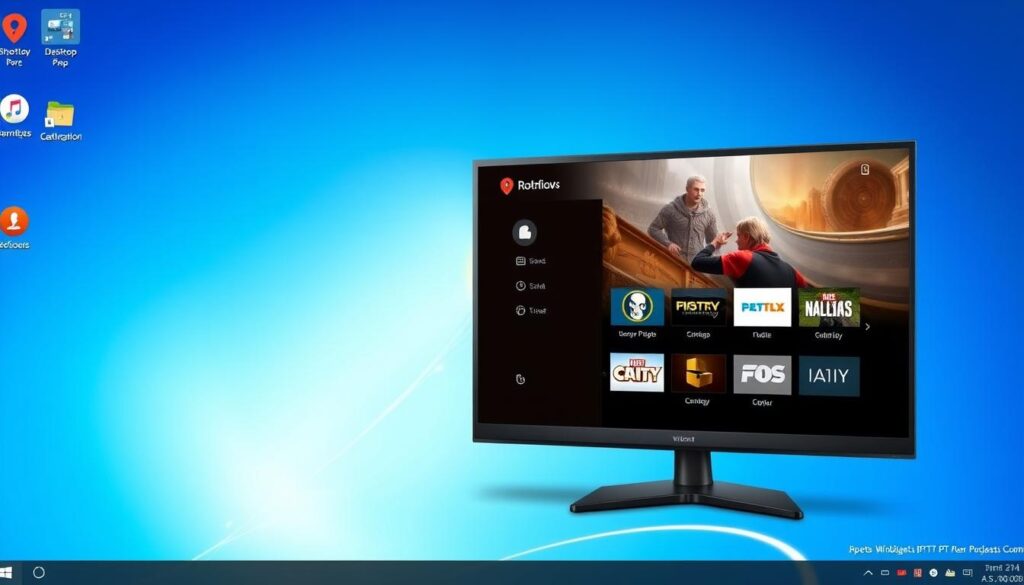
IPEXO IPTV Player is a robust and feature-rich application designed for Windows users seeking a seamless IPTV experience. With its polished, user-friendly interface, it’s specifically tailored for IPTV content consumption.
Key Features and Interface
The IPEXO IPTV Player boasts a dedicated Windows application with a user-friendly interface that simplifies navigation and content access. Its home screen provides shortcuts to recently added movies and series, along with a “Continue Watching” section that remembers where you left off.
Playlist Management and Parental Controls
IPEXO IPTV Player offers robust playlist management tools that allow you to organize channels, hide unnecessary groups, and pin favorites to the top. Additionally, it features a comprehensive parental control system that enables you to lock adult content, creating a family-friendly environment on your shared screen.
The player supports both M3U/M3U8 playlists and XC/XUI API-based connections, making it compatible with most IPTV providers while offering full EPG support. With its universal search function, you can easily find content across all your playlists by name, group, or year.
Kodi as an IPTV Solution
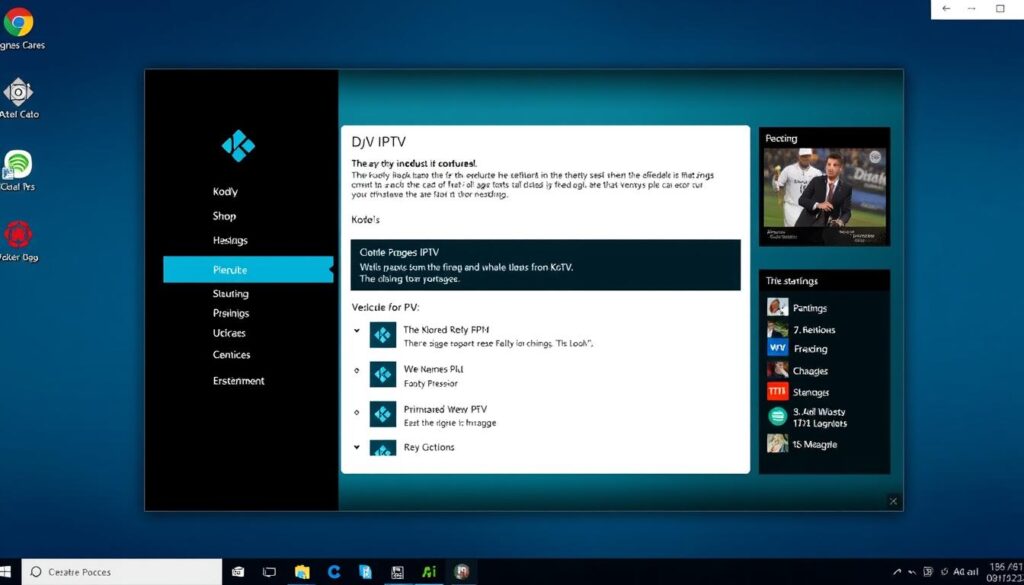
For users seeking a customizable IPTV experience on their Windows PC, Kodi presents a compelling option. Kodi is a powerful media center application that supports IPTV through various add-ons and plugins, allowing you to create a personalized entertainment hub.
IPTV Add-ons for Kodi
Kodi transforms into a robust IPTV solution with specialized add-ons like PVR IPTV Simple Client, which integrates seamlessly with your existing content library. This add-on enables you to manage multiple IPTV services simultaneously, organizing channels under a unified interface.
Customization Options
The open-source platform offers unparalleled customization options, allowing you to redesign the interface with different skins, layouts, and widgets to match your preferences. Advanced users can fine-tune settings, such as cache sizes and playback options, for optimal performance.
Perfect Player and IPTV Smarters Pro
If you’re looking for a reliable IPTV player for your PC, Perfect Player and IPTV Smarters Pro are worth considering. Both offer unique features that enhance your streaming experience.
Key Features
Perfect Player offers a clean, TV-like interface designed specifically for IPTV content consumption. It supports EPG and has excellent playlist management features, making it ideal for handling large M3U playlists.
Advanced Capabilities
IPTV Smarters Pro provides a professional-looking interface with advanced features, including support for multiple playlist formats and the ability to organize content into different categories. It also offers multi-screen support and catch-up functionality.
How to Choose the Right IPTV Player for Your Needs
To enjoy your favorite shows and movies seamlessly, it’s crucial to pick an IPTV player that aligns with your viewing preferences and system specifications. When selecting an IPTV player for your Windows PC, several factors come into play to ensure a smooth and enjoyable viewing experience.
System Requirements Considerations
Your PC’s specifications play a significant role in determining which IPTV player to use. For basic IPTV streaming, at least 4GB of RAM is recommended, while more RAM enhances performance, especially for HD content. A stable internet connection is also crucial, with speeds of 5 Mbps for SD, 10-15 Mbps for HD, and 25 Mbps or higher for 4K content.
Content Type Compatibility
Assess your content preferences to choose the right IPTV player. If you primarily watch live channels, a simple player might suffice. However, for those who enjoy movies and series, players with library management features, such as IPTV Smarters Pro, offer a better experience.
Free vs. Premium Options
Decide between free and premium IPTV players based on your needs. Free players like VLC Media Player offer basic functionality, while premium options provide enhanced interfaces, better playlist organization, and dedicated customer support. Check if your IPTV provider recommends a specific player or offers a branded app optimized for their service, as seen in guides like The Ultimate Guide to Finding the Best IPTV.
For more information on IPTV services and compatible players, you can visit resources like G-IPTV to explore options for streaming live TV on your devices.
Setting Up Your IPTV Player: Step-by-Step Guide
Configuring an IPTV player involves several key steps that ensure a seamless streaming experience. You need to install the right IPTV player, configure it with your service details, and optimize settings for the best performance.
Installing Your Chosen Player
Begin by downloading and installing your chosen IPTV player from the official website to ensure you get a secure, malware-free version optimized for Windows. Most IPTV players, such as VLC Media Player, are available for free and can be easily installed on your PC.
Adding M3U Playlists and EPG Sources
To access your IPTV channels, you’ll need to import your service’s M3U playlist. This typically involves navigating to the “Settings” or “Playlists” section within your player, then either pasting the M3U URL or importing the file from your device. For enhanced functionality, configure EPG (Electronic Program Guide) by adding the XML/XMLTV URL provided by your service.
Troubleshooting Common Setup Issues
If you encounter playback issues, troubleshoot by checking your internet connection speed, updating your player to the latest version, or trying alternative stream formats your provider may offer. You can also adjust buffer settings to optimize your streaming experience. For more detailed guides, you can visit resources like collabnix or armchairarcade for additional support.
By following these steps, you can enjoy a seamless IPTV streaming experience on your PC. For more complex setups or specific player configurations, consider checking out detailed guides like the one on G-IPTV.
Legal Considerations When Using IPTV Players
Understanding the legal landscape of IPTV is crucial for a safe and enjoyable viewing experience. While IPTV technology itself is legal, the legality of the content you access depends on the service provider you choose.
To ensure you’re using a legitimate IPTV service, look for providers that have proper licensing agreements for their content. Be cautious of services offering thousands of channels, movies, and series at suspiciously low prices, as these often distribute unauthorized content. For a comprehensive guide on watching IPTV on your PC, you can refer to this detailed guide.
Many legitimate streaming services now offer their own M3U playlists or API access that can be used with third-party players, providing a fully legal viewing experience. When selecting an IPTV provider, research their business registration, pricing transparency, and terms of service to ensure you’re opting for a legitimate service.