
Internet Protocol Television (IPTV) is revolutionizing the way we consume television content, offering a flexible alternative to traditional cable and satellite services.
With IPTV, you’re in control of your viewing experience, accessing a variety of on-demand channels and content over the Internet. This comprehensive guide will walk you through everything you need to know about setting up and using IPTV, from understanding the basics to troubleshooting common issues.
We’ll cover the essential requirements for getting started with IPTV, including internet connection specifications and compatible devices. You’ll learn how to set up IPTV on various devices, including smart TVs and Android devices, with step-by-step instructions for each platform.
Key Takeaways
- Understand the basics of IPTV and its benefits over traditional TV services.
- Learn how to set up IPTV on various devices, including smart TVs and streaming devices.
- Discover the essential requirements for a smooth IPTV streaming experience.
- Find out how to troubleshoot common IPTV issues.
- Optimize your IPTV setup for the best viewing experience.
Understanding IPTV: What It Is and How It Works
IPTV, or Internet Protocol Television, is revolutionizing the way we consume media by offering a range of services that cater to different viewing preferences. As we delve into the world of IPTV, it’s essential to understand what it is and how it functions.
What Is Internet Protocol Television?
Internet Protocol Television (IPTV) delivers television content over the internet, rather than through traditional terrestrial, satellite, or cable formats. This method allows for a more personalized viewing experience, as users can access content on-demand. IPTV services come in various formats, including live TV, time-shifted TV, video-on-demand (VOD), and near-video-on-demand, each offering unique features that enhance the entertainment experience.
Different Types of IPTV Services
There are several types of IPTV services available, catering to different viewing habits. These include:
- Live IPTV services, which stream content in real-time, ideal for sports events and news broadcasts.
- Video-on-Demand (VOD) IPTV services, providing libraries of content that users can access at their convenience.
- Time-shifted media or catch-up TV services, allowing viewers to watch recently broadcast shows at a time that suits them.
- Hybrid services that combine elements of live streaming, VOD, and time-shifted content, offering comprehensive access to entertainment options.
As stated by a leading IPTV provider, “The flexibility and variety offered by IPTV services are changing the way we enjoy television, making it more than just a passive experience.” With the range of options available, users can choose the IPTV service that best fits their viewing preferences, whether it’s for live sports, on-demand movies, or catch-up TV.
Essential Requirements Before You Start
Before diving into the world of IPTV, it’s crucial to understand the essential requirements that will ensure a seamless streaming experience. IPTV, or Internet Protocol Television, offers a wide range of channels and services, but to fully enjoy these, certain prerequisites must be met.
Internet Connection Requirements
A stable and fast internet connection is the backbone of IPTV streaming. You need a minimum internet speed of 5 Mbps for HD content and 25 Mbps for 4K streaming. Ensure your internet plan can support this demand to avoid buffering and lag.
Compatible Devices for IPTV
IPTV can be streamed on various devices, including smart TVs, smartphones, tablets, and dedicated IPTV players. When choosing a device, consider its processing power, screen resolution, and compatibility with your chosen IPTV player or app. For instance, devices with Android TV or Apple TV offer seamless integration with many IPTV services.
Finding a Reliable IPTV Provider
Selecting a reputable IPTV provider is perhaps the most critical decision in your IPTV journey. Consider the following factors:
- Number of live TV channels offered
- Number of connections under the plan
- Compatibility with VPN
- Price and pricing structure
- Availability of premium sports channels
- Customer support quality
Look for providers with transparent pricing, clear terms, and responsive customer support. Research user reviews and uptime reports to gauge the provider’s reliability.
How Do I Use IPTV: Basic Setup Process
The basic setup process for IPTV involves a few crucial steps that ensure you can access your desired channels and content. To get started, you’ll need to follow these steps carefully to set up your IPTV service correctly.
Obtaining Your M3U Playlist or URL
The first step in setting up your IPTV service is obtaining your M3U playlist or URL from your provider. This is usually provided when you sign up for the service. The M3U file or URL contains the list of channels you have access to. Make sure to keep this information secure, as it grants access to your IPTV service.
To use the M3U URL, you’ll need to copy and paste it into your IPTV player application. For an M3U file, you’ll need to download and save it on your device. Some providers may offer both options, so choose the one that best suits your needs.
Installing an IPTV Player Application
Next, you’ll need to install an IPTV player application on your device. There are many IPTV player apps available, so choose one that’s compatible with your device and meets your needs. Popular IPTV players include VLC media player, which is free and supports various media formats.
When selecting an IPTV player, consider factors such as user interface, channel organization, and compatibility with your device. Some players may offer additional features like EPG (Electronic Program Guide) support or customizable channel lists.
Connecting Your IPTV Service to the Player
To connect your IPTV service to the player, you’ll need to input your M3U playlist URL or load the M3U file. Most IPTV players follow a similar connection process: navigate to settings or add source option, select the option to add a new playlist, then either paste your M3U URL or select your locally saved M3U file.
- Some players may request additional information during setup, such as a name for your playlist or EPG source URL.
- After adding your playlist, the player will load and parse the channel list, which may take several minutes depending on the size of your playlist.
- Once connected, you can browse channels using the playlist on your player’s interface, often grouped by categories like Sports, News, or Entertainment.
Setting Up IPTV on Different Devices
To get the most out of IPTV, it’s essential to understand how to set it up on your preferred device. IPTV services offer flexibility by being compatible with a range of devices, ensuring you can enjoy your favorite content anywhere in your home.
IPTV Setup on Smart TVs
Setting up IPTV on Smart TVs is relatively straightforward. First, ensure your TV is connected to the internet. Then, navigate to the app store on your TV, download a reputable IPTV app, and follow the on-screen instructions to configure it with your IPTV provider’s details.
Using IPTV on Android Devices
For Android users, IPTV can be easily set up by downloading an IPTV app from the Google Play Store. Apps like IPTV Smarters and GSE Smart IPTV are popular choices. Once installed, you’ll need to input your IPTV provider’s M3U URL to start streaming your favorite channels.
Setting Up IPTV on Amazon Fire Stick
The Amazon Fire Stick is another device that supports IPTV. To set it up, navigate to the Fire Stick’s app store, download an IPTV app, and sideload it if necessary. Then, enter your IPTV provider’s details to begin streaming.
IPTV on Apple Devices
Apple device users can also enjoy IPTV by downloading apps from the App Store. For instance, you can use the G IPTV guide to set up your IPTV service. Apps like GSE Smart IPTV are available for download. After installation, simply input your IPTV provider’s M3U URL to start streaming.
| Device | IPTV App | Setup Complexity |
|---|---|---|
| Smart TV | GSE Smart IPTV | Easy |
| Android | IPTV Smarters | Easy |
| Amazon Fire Stick | TiviMate IPTV | Moderate |
| Apple TV | GSE Smart IPTV | Easy |
By following these steps, you can enjoy IPTV on your device of choice, accessing a wide range of channels and content.
Using VLC Media Player for IPTV
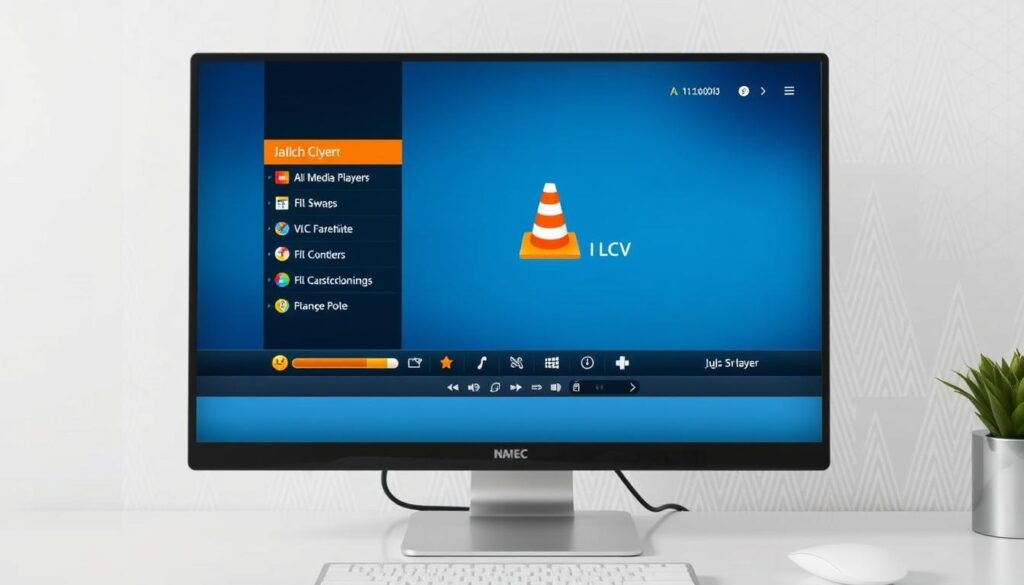
VLC Media Player stands out as a preferred choice for IPTV due to its open-source nature and the ability to customize settings for a better streaming experience. To get started with VLC for IPTV, you’ll first need to ensure you have the latest version installed on your device.
Installing VLC Media Player
To install VLC, visit the official VLC website and download the appropriate version for your operating system. The installation process is straightforward and should only take a few minutes. Once installed, you can begin configuring VLC for IPTV streaming.
Loading Your IPTV Playlist in VLC
After installing VLC, you’ll need to load your IPTV playlist. This is typically done by opening VLC, navigating to “Open Network,” and entering the URL of your IPTV playlist. VLC supports various playlist formats, making it compatible with most IPTV services. For more detailed instructions, you can refer to guides like this tutorial on streaming live TV channels using VLC.
Optimizing VLC Settings for IPTV
To enhance your IPTV streaming experience, you can tweak VLC’s settings. For instance, adjusting the network buffer can help reduce buffering issues. To do this, go to “Tools” > “Preferences” > “Input/Codecs” and adjust the “Network caching” value. For improved video quality, consider enabling hardware acceleration under “Input & Codecs” settings. These adjustments can significantly improve your overall IPTV streaming experience.
Troubleshooting Common IPTV Issues
To ensure a smooth IPTV experience, it’s crucial to know how to troubleshoot common problems. IPTV, like any streaming service, can be affected by various technical glitches. Understanding how to address these issues can significantly enhance your viewing experience.
Fixing Buffering and Streaming Problems
Buffering and streaming problems are often related to your internet connection. Ensure that your connection meets the minimum speed requirements for IPTV streaming. You can check your internet speed using online tools and compare it to the recommendations provided by your IPTV service provider. For more information on internet speed requirements for streaming, you can visit this helpful guide.
Resolving Channel Loading Issues
Channel loading issues can be frustrating. First, try restarting your IPTV app. If the problem persists, check if your device is compatible with the IPTV service and ensure that the server is stable. Sometimes, the issue might be with the channel itself, so try switching to a different channel to isolate the problem.
Dealing with App Crashes and Freezes
Application crashes and freezes are often caused by memory management issues on your device. To resolve this, try clearing the app’s cache, restarting your device, or uninstalling and reinstalling the app. Keeping your IPTV app updated is also crucial, as developers release patches to address known stability issues. By following these steps, users can enjoy a more stable IPTV experience, accessing the information and entertainment they need without interruptions.
- Clear the app’s cache by navigating to your device’s Settings > Apps > [Your IPTV App] > Storage > Clear Cache.
- Restart your device to refresh its memory and resolve temporary glitches.
- Uninstall and reinstall the app if problems persist, ensuring you note your login information and playlist URLs beforehand.
Enhancing Your IPTV Experience
To get the most out of your IPTV service, explore the various options available for enhancing your viewing experience. IPTV players such as Kodi, Smarters, and MyIPTV Player let you bring different IPTV channels and streamers together in one app.
Using a VPN with IPTV Services
Using a VPN can significantly enhance your IPTV experience by providing a secure and private connection. For the best IPTV streaming services, a VPN can help bypass geo-restrictions and ensure uninterrupted streaming.
Organizing Channels and Creating Favorites
Most quality IPTV applications offer features that can transform a cluttered list of hundreds or thousands of channels into a manageable, personalized viewing experience for users. You can create favorites lists, group channels by content type or country/language, and even hide unwanted channels.
For more information on setting up IPTV on various devices, you can refer to guides like how to set up IPTV on.
Conclusion
Having walked through the steps of using IPTV, you’re poised to transform your entertainment experience. Throughout this comprehensive guide, we’ve explored the fundamentals of Internet Protocol Television, from setup to troubleshooting common issues. With the right IPTV provider, compatible devices, and a stable internet connection, you can access thousands of channels and on-demand content from around the world.
The flexibility of IPTV allows you to customize your viewing experience across multiple devices, whether you prefer watching on your smart TV, mobile device, or computer. For more detailed information on IPTV technology and its applications, you can refer to resources such as EXFO’s guide on MPEG4-HDTV migration or research articles on IPTV services like those found in River Publishers’ Journal.
As IPTV technology continues to evolve, staying informed about best practices for optimization and troubleshooting will ensure you get the most value from your subscription. By optimizing each element of your IPTV setup, you can enjoy a superior streaming experience with enhanced options for content consumption.