
Are you looking for a versatile streaming application to manage your IPTV content efficiently? GSE Smart IPTV Pro is a powerful media player designed to support various formats and provide a seamless streaming experience across multiple devices.
This comprehensive review will explore the features and pricing of GSE Smart IPTV Pro, helping you determine if it’s the right choice for your streaming needs. With its advanced functionality and user-friendly interface, this app has become a popular choice among cord-cutters seeking legal alternatives to traditional cable.
We’ll examine how GSE Smart IPTV Pro works, its capabilities, and how it compares to other IPTV solutions, ensuring you have a clear understanding of what this sophisticated player offers.
Key Takeaways
- Discover the features and pricing of GSE Smart IPTV Pro
- Understand how this app supports various IPTV formats
- Learn about the user interface and streaming experience
- Compare GSE Smart IPTV Pro with other IPTV solutions
- Determine if GSE Smart IPTV Pro meets your streaming needs
What is GSE Smart IPTV Pro?
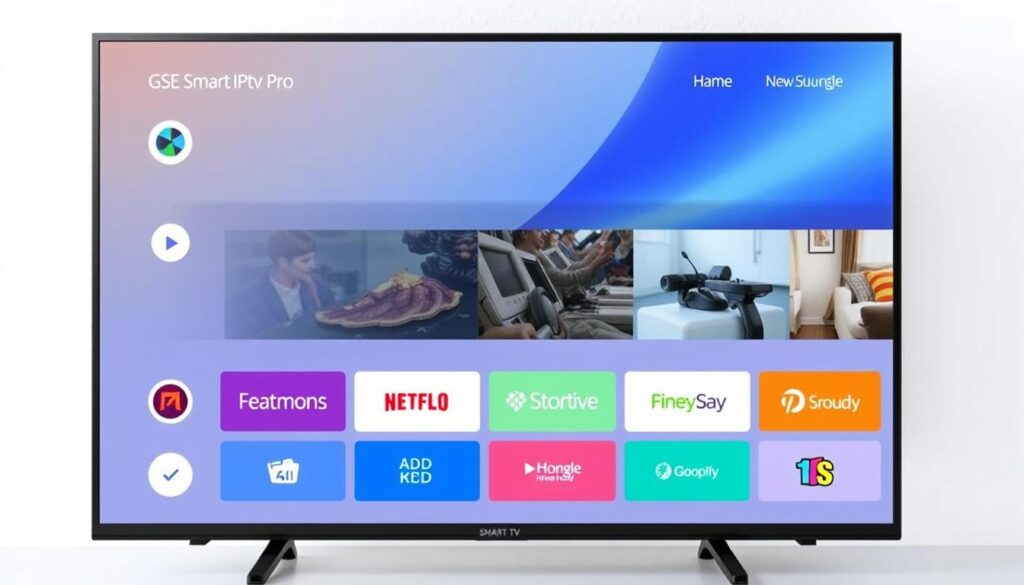
For those looking for an advanced IPTV experience, GSE Smart IPTV Pro offers a robust media player and content management system. Unlike traditional streaming services, GSE Smart IPTV Pro functions as an IPTV solution, allowing users to manage their own content.
GSE Smart IPTV Pro is designed for tech-savvy users who already have access to IPTV subscriptions and are looking for a more powerful, feature-rich player to enhance their viewing experience. The application serves as a centralized hub where users can organize multiple IPTV subscriptions, playlists, and channels from various providers in one convenient interface.
The app supports a wide range of formats and protocols, making it compatible with most IPTV services that offer M3U playlists, JSON formats, or Xtream Codes API access. It’s essential to understand that GSE Smart IPTV Pro has no affiliation with any third-party content providers and doesn’t include any preset channels or streams beyond sample content.
By using GSE Smart IPTV Pro, users can enjoy a personalized IPTV experience, accessing their preferred content through a user-friendly interface. The app is designed to provide a seamless viewing experience, making it an ideal choice for those seeking an advanced IPTV solution.
GSE Smart IPTV Pro Features
GSE Smart IPTV Pro boasts an impressive array of features that enhance your streaming experience. This application is designed to provide users with a seamless and enjoyable IPTV experience.
Playlist Support
GSE Smart IPTV Pro offers robust playlist support, allowing you to easily manage and play your favorite channels and content. You can upload your M3U playlists and access them conveniently within the app.
EPG Program Guide
The EPG program guide is another standout feature, providing you with a comprehensive schedule of upcoming programs. This feature helps you stay organized and plan your viewing in advance, ensuring you never miss your favorite shows.
Built-in Media Player
The built-in powerful media player is a key highlight of GSE Smart IPTV Pro. It supports virtually all popular video formats, including RTMP streams with token authentication. The player also includes subtitle support for .srt files, which can be uploaded via FTP or HTTP, enhancing your viewing experience.
GSE Smart IPTV Pro Pricing
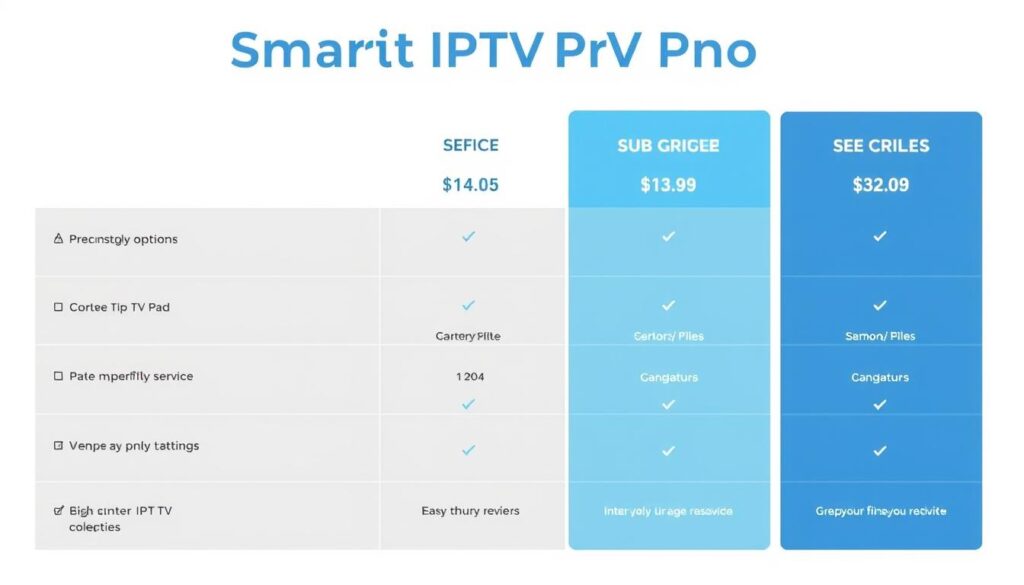
GSE Smart IPTV Pro’s pricing model is tailored to offer value to its users. The application is available as a one-time purchase for $2.99 on some platforms, making it an affordable option compared to many subscription-based streaming services.
For iOS users, the app offers a free base version with limited functionality. The full feature set can be unlocked through subscription options: $4.99 for a monthly subscription, $9.99 for a three-month plan, or $14.99 for an annual subscription. These plans are auto-renewing but can be managed and canceled through your device’s app store settings.
The pricing model offers excellent value considering the robust feature set. However, it’s essential to note that this price only covers the player application itself. You’ll still need to provide your own IPTV subscription content from third-party providers.
Key Pricing Details:
- GSE Smart IPTV Pro available as a one-time purchase for $2.99
- iOS subscription options: $4.99/month, $9.99/3 months, $14.99/year
- Auto-renewing subscription plans
- Additional IPTV subscription content required from third-party providers
How to Install GSE Smart IPTV Pro on FireStick
To enjoy GSE Smart IPTV Pro on your FireStick, follow these simple installation steps. First, you’ll need to install the Downloader app, which will help you download and install GSE Smart IPTV Pro.
Installing the Downloader App
Begin by installing the Downloader app on your FireStick. This app allows you to download and install third-party applications like GSE Smart IPTV Pro. To do this, go to the FireStick home screen, search for the Downloader app, and install it.
Downloading and Installing GSE Smart IPTV Pro
With the Downloader app installed, open it and navigate to the URL input field. Enter gsesmartiptv.com and click GO. This will take you to the GSE Smart IPTV website, where you can download the APK file for Amazon devices. Once downloaded, click Install to begin the installation process. After installation, you can open GSE Smart IPTV Pro and start enjoying your favorite content.
- Launch the Downloader app and navigate to the URL input field.
- Enter the official GSE Smart IPTV website URL and click GO.
- Download the APK file for Amazon devices and install it.
How to Install GSE Smart IPTV Pro on Android Devices
You can quickly install GSE Smart IPTV Pro on your Android device by following a few simple steps. GSE Smart IPTV is supported on all Android platforms, including TV boxes, smart TVs, and handheld devices.
Installation on Android TV Box and Smart TVs
To install GSE Smart IPTV Pro on your Android TV Box or Smart TV, start by opening the Google Play Store app. Search for “GSE Smart IPTV” and follow the on-screen instructions to download and install the app.
| Step | Description |
|---|---|
| 1 | Open Google Play Store |
| 2 | Search for GSE Smart IPTV |
| 3 | Download and Install |
Installation on Android Phones and Tablets
Installing GSE Smart IPTV on Android phones and tablets is a straightforward process. Open the Google Play Store, search for “GSE Smart IPTV,” and verify that the developer is “GSE TECHNOLOGY LTD.” Tap “Install” and wait for the process to complete. The app features a touch-optimized interface, making it convenient to use on smaller screens. You can also use Chromecast to cast content to larger screens.
How to Install GSE Smart IPTV Pro on iOS Devices
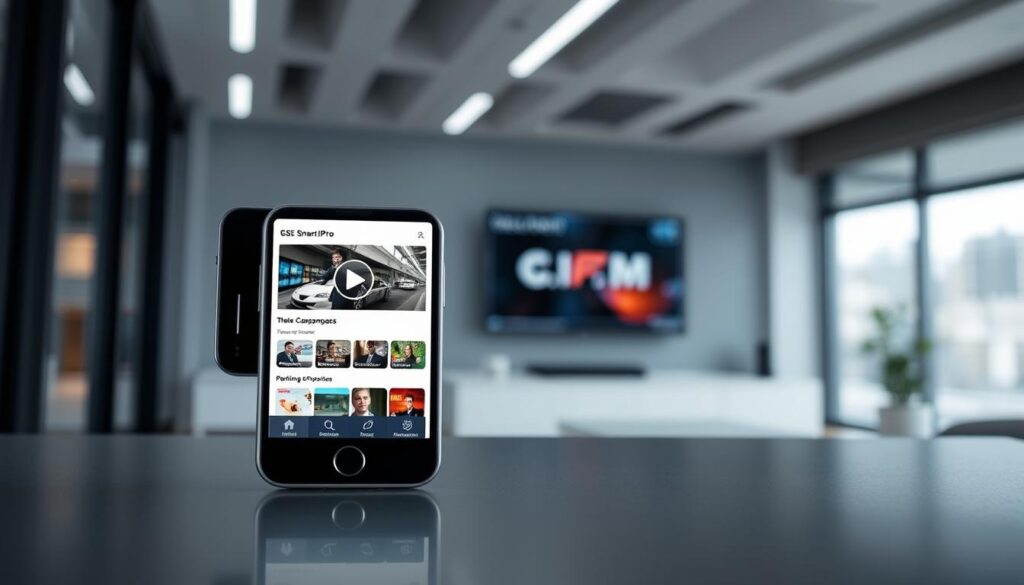
GSE Smart IPTV Pro is available on iOS devices through the Apple App Store. So, again, no sideloading is required. Here is how you can get GSE Smart IPTV on iPhone and other iOS devices:
Begin by opening the App Store on your iPhone, iPad, or iPod Touch—the blue icon with the “A” symbol typically found on your home screen. Use the search function at the bottom of the App Store and type “GSE Smart IPTV” to locate the application.
- Installing GSE Smart IPTV Pro on iOS devices is a straightforward process as the app is officially available through the Apple App Store.
- When reviewing the search results, ensure you’re selecting the official version by checking that the developer is listed as “GSE TECHNOLOGY LTD” before proceeding.
- Tap “Get” (for the free version) or the price button (for the Pro version), then authenticate with Face ID, Touch ID, or your Apple ID password to authorize the download.
- The App Store will handle the download and installation process automatically, with the app appearing on your home screen or in your App Library once complete.
- Unlike Android or FireStick installations, iOS installations are managed entirely through Apple’s ecosystem, providing additional security but requiring subscription purchases to be made through in-app purchases.
- For more detailed guides on various IPTV services, you can visit Firestick Tricks.
The iOS version offers the same comprehensive feature set as other platforms but with an interface optimized for touch controls and iOS design standards.
Setting Up GSE Smart IPTV Pro
Setting up GSE Smart IPTV Pro involves a few simple steps that unlock its advanced functionalities. To start, you’ll need to configure the app with your IPTV playlist and EPG data.
Adding M3U Playlists
To add an M3U playlist, navigate to the playlist section and click the “+” icon. You can then select the M3U file from your local storage or enter a URL. For more detailed instructions, you can refer to our complete guide on installing and using GSE Smart.
Setting Up Xtream Codes API
To set up Xtream Codes API, go to the Xtream Codes section and enter your API credentials. This will allow you to access your IPTV content through the Xtream Codes service.
Importing EPG Guide
Importing an EPG enhances your viewing experience by providing program schedules. To import, go to “EPG Program Guide” in the left menu, click the “+” icon, and choose to add from a local file or URL. The app supports XMLTV format and can process large EPG files.
Using GSE Smart IPTV Pro
GSE Smart IPTV Pro is designed to provide a seamless viewing experience. Its powerful built-in video player supports virtually all streaming formats, eliminating the need for third-party players.
Navigating the Interface
The interface of GSE Smart IPTV Pro is intuitive and user-friendly. You can easily navigate through your playlists, browse or search for channels, and access various settings.
The app’s design ensures that you can quickly find what you’re looking for, making it simple to start watching your favorite content.
Watching Content
Watching content through GSE Smart IPTV Pro offers a seamless experience. The video player interface includes standard playback controls such as play/pause, volume adjustment, and full-screen toggle.
- Access EPG information by tapping the screen or pressing the info button on your remote.
- Adjust aspect ratios and scaling options for optimal viewing.
- Enable, disable, or adjust subtitle settings directly from the playback interface.
You can download GSE Smart IPTV Pro from the App Store for iOS devices.
| Feature | Description | Benefit |
|---|---|---|
| Built-in Video Player | Supports virtually all streaming formats | Seamless viewing experience |
| EPG Information | Access current and upcoming programs | Enhanced viewing experience |
| Subtitle Settings | Enable, disable, or adjust subtitles | Personalized viewing experience |
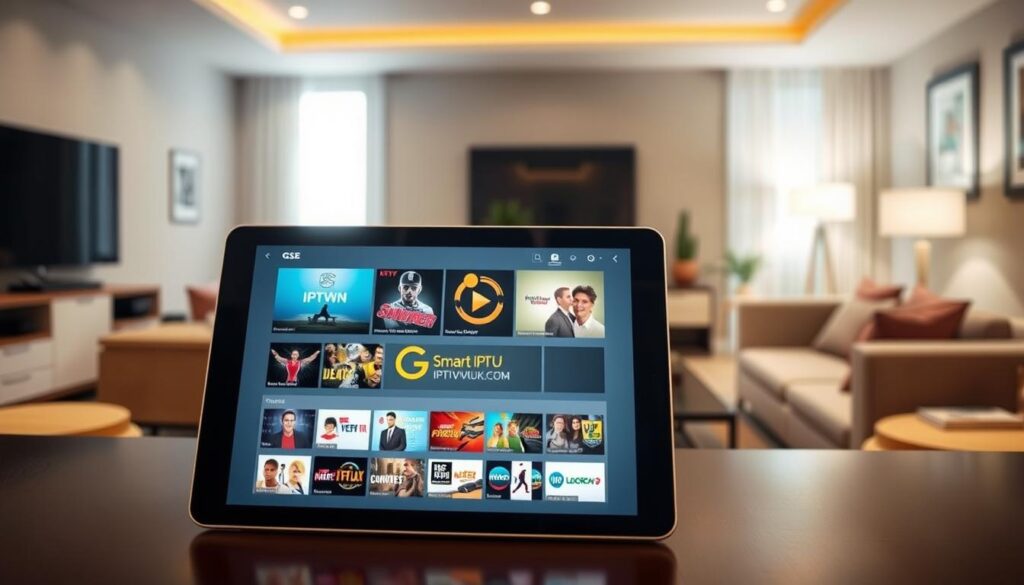
Advanced Features of GSE Smart IPTV Pro
The advanced features of GSE Smart IPTV Pro are designed to provide a more personalized and secure viewing experience. These features cater to the diverse needs of its users, ensuring a comprehensive IPTV solution.
External Player Integration
GSE Smart IPTV Pro allows for external player integration, giving users the flexibility to choose their preferred media player for a more tailored viewing experience. This feature is particularly useful for those who prefer players with specific functionalities not available in the default player.
Parental Controls
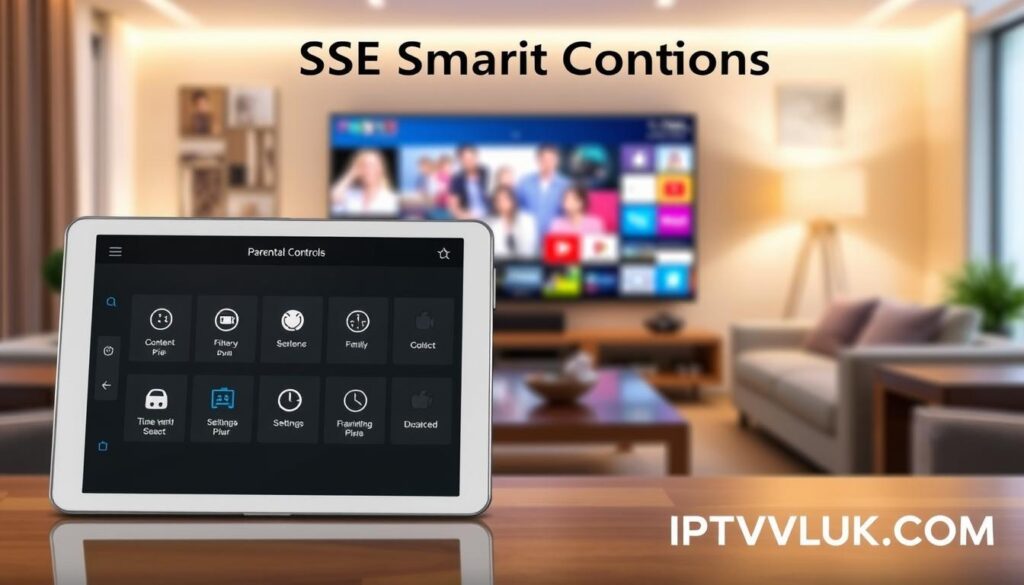
Parental controls are a crucial feature in GSE Smart IPTV Pro, enabling users to restrict access to certain content based on their preferences. You can set up a PIN code to prevent unauthorized access to adult content or channels inappropriate for younger viewers. The parental controls can be configured to block entire playlists, specific categories, or individual channels, providing a safe viewing environment for all family members. For more information on setting up IPTV services, you can visit this guide.
Pros and Cons of GSE Smart IPTV Pro
Understanding the strengths and weaknesses of GSE Smart IPTV Pro can help users make informed decisions about their streaming needs.
Advantages
GSE Smart IPTV Pro offers a robust streaming experience with features like playlist support and EPG guides. Its ability to work across various devices, including Android and iOS platforms, adds to its versatility. The app’s performance is generally stable, although it may vary based on device specifications.
Limitations
Despite its advantages, GSE Smart IPTV Pro has some limitations. For instance, it cannot play audio in the background when switching to another app or locking the device, limiting multitasking. The initial setup can be complex for less tech-savvy users, and customer support has been reported as inconsistent. Additionally, the iOS version requires a subscription for full functionality.
| Feature | Advantage | Limitation |
|---|---|---|
| Background Playback | Convenient for multitasking | Not supported in latest version |
| Setup Process | Customizable | Can be complex for new users |
| Customer Support | Available for assistance | Response times can be slow |
Conclusion
GSE Smart IPTV Pro emerges as a top-tier IPTV solution, offering a comprehensive suite of features that cater to both casual viewers and power users. As a versatile IPTV player, it supports multiple playlist formats and device platforms.
You can experience the convenience of managing multiple IPTV subscriptions in one place, enjoying a seamless streaming experience. With its robust features and user-friendly interface, GSE Smart IPTV Pro is available for download on various platforms, including iOS devices through the App Store.