
Are you frustrated when your streaming service suddenly stops working? IPTV service interruptions can be caused by various factors, including server maintenance and internet connectivity issues.
According to status updates from IPTV providers, service interruptions can occur due to power outages at data centers or issues with your internet connection. Understanding the common causes of these outages can help you diagnose problems faster.
Many issues can be resolved through simple troubleshooting steps, saving you time and hassle. This guide will walk you through the most frequent reasons for service interruptions and provide practical solutions you can implement immediately.
Key Takeaways
- Server maintenance and power outages can cause IPTV service interruptions.
- Internet connectivity issues can disrupt your streaming experience.
- Simple troubleshooting steps can resolve many IPTV issues.
- Understanding common causes of outages can help you diagnose problems faster.
- Practical solutions can be implemented to get back to streaming.
Common Reasons Why Your IPTV Service Is Down
IPTV outages can occur due to various reasons, and understanding these causes is crucial for troubleshooting. When your IPTV service is down, it could be due to issues on the provider’s end or problems with your setup.
Server Maintenance and Upgrades
Sometimes, IPTV providers perform server maintenance or upgrades, which can temporarily disrupt service. As one provider stated, “We are currently experiencing an issue with the N1 Server, which is impacting some of our customers connected to it. The root cause of the problem is a disruption in internet and power at the affected data center.” Such maintenance is essential for improving service quality, but it can cause temporary outages.
Internet Connection Issues
Your internet connection plays a critical role in IPTV service. Issues such as slow speeds, packet loss, or DNS resolution problems can prevent your IPTV from working correctly. Ensuring a stable and fast internet connection is vital for uninterrupted IPTV service. For detailed guidance on setting up your IPTV, you can refer to resources like this comprehensive guide.
Provider-Side Outages
Provider-side outages can occur due to various reasons, including data center issues, content licensing problems, or technical failures in distribution systems. Major events can also overwhelm IPTV infrastructure, causing temporary service degradation. Understanding these factors can help you troubleshoot and potentially resolve the issue.
Quick Diagnostic Steps for IPTV Down Issues
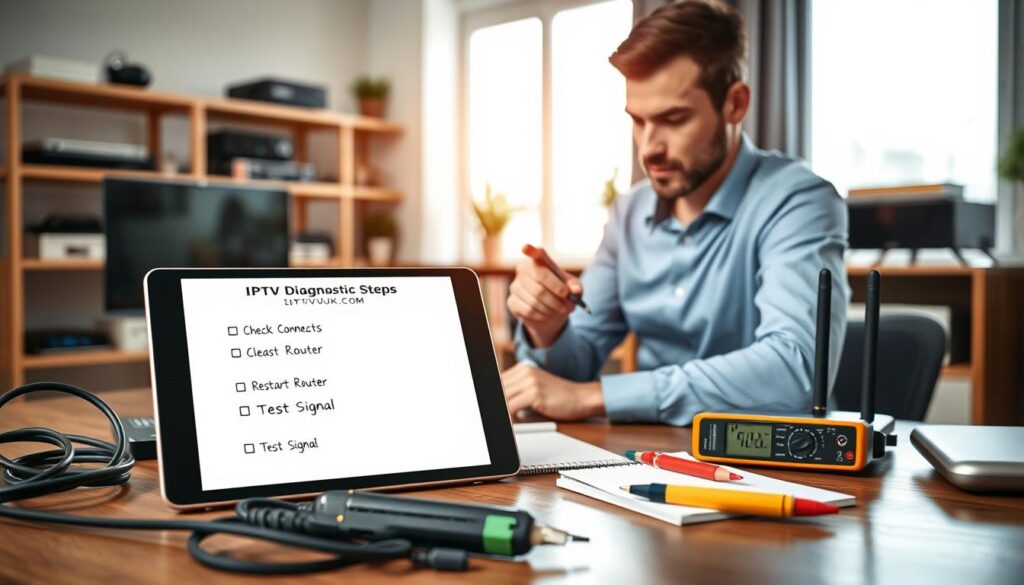
IPTV downtime can be frustrating, but there are several quick diagnostic steps you can take to identify and potentially resolve the issue. When your IPTV service is not working, it’s crucial to methodically check various components of your setup.
Checking Your Internet Connection
Your IPTV service relies on a stable internet connection. Ensure your internet is working by checking other devices connected to the same network. If your internet is down, restart your router or contact your internet service provider for assistance. For a more detailed guide on setting up your IPTV gear, you can refer to this essential guide.
Verifying Provider Status
Sometimes, the issue may be on your IPTV provider’s end. Check their status page or social media for any announcements about server maintenance or outages. As one IPTV expert noted, “We’ve identified a problem affecting the PlayerIPTV app following an update released last night. The good news is that the issue can be easily fixed!”
“We’ve identified a problem affecting the PlayerIPTV app following an update released last night. The good news is that the issue can be easily fixed!”
Examining Your IPTV Equipment
Equipment issues are common causes of IPTV downtime. Here are some steps to diagnose your equipment:
- Verify that your streaming device is functioning properly by testing other applications or services.
- Check if your IPTV application needs an update, as outdated versions may have compatibility issues with server changes.
- Examine physical connections, including HDMI cables, ethernet connections, and power supplies.
- Ensure your device has adequate storage space and memory available for streaming applications.
- Check if your device is overheating, which can cause performance issues during extended streaming sessions.
| Diagnostic Step | Purpose | Action |
|---|---|---|
| Check Internet Connection | Ensure stable internet | Restart router or contact ISP |
| Verify Provider Status | Check for provider-side issues | Check status page or social media |
| Examine IPTV Equipment | Identify equipment issues | Check device functionality, update apps, inspect connections |
Step-by-Step Troubleshooting Solutions
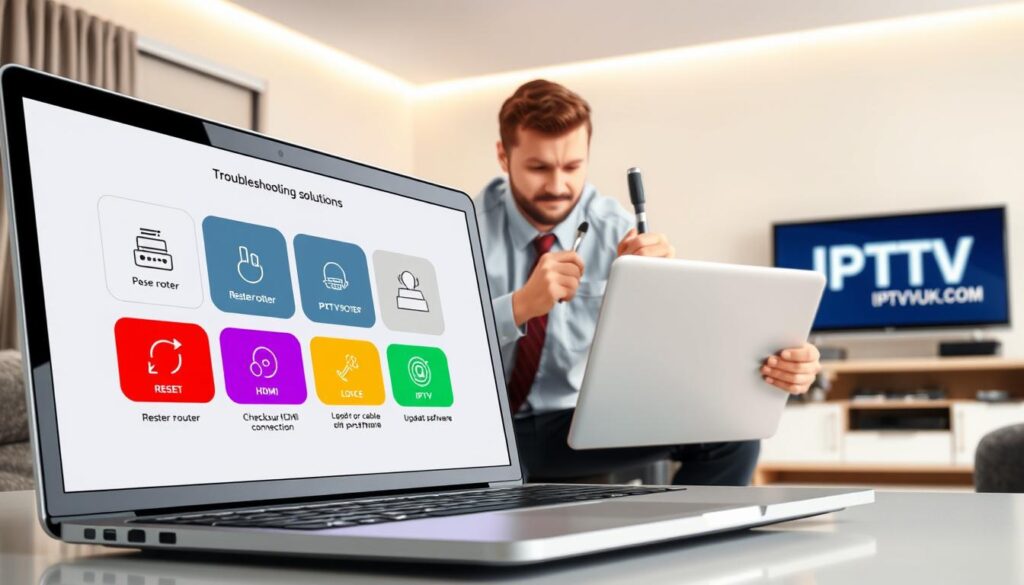
Resolving IPTV connectivity issues involves a few simple troubleshooting measures. When you’re experiencing issues with your IPTV service, there are several steps you can take to resolve the problem.
Restart Your Devices
Begin by restarting your IPTV device and your router. This simple step often resolves connectivity issues.
Update Your IPTV Application
Ensure your IPTV application is up to date. Updates often include fixes for known issues. You can check for updates in your device’s app store.
Check Server Settings and URLs
Verify that your server settings and URLs are correctly configured. Incorrect settings can prevent your IPTV from working properly.
Reset Your Network Equipment
If restarting doesn’t work, try resetting your network equipment. This can help resolve more persistent connectivity issues.
Clear Cache and Temporary Files
Clearing the cache and temporary data can resolve issues, especially after an update. For example, on Android devices, go to Settings > Apps > Your IPTV App > Storage > Clear Cache and Clear Data. After clearing data, you’ll need to re-enter your login credentials.
- Clear cache through the IPTV app settings.
- For Fire TV, navigate to Settings > Applications > Manage Installed Applications > Your IPTV App > Clear Cache.
- Some devices benefit from a complete restart after clearing cache.
When to Contact Your IPTV Provider
Understanding when to reach out to your IPTV provider can help resolve complex issues more efficiently, saving you hours of frustration.
While many IPTV issues can be resolved through self-troubleshooting, some problems require direct assistance from your service provider. If you’ve tried the diagnostic steps and troubleshooting solutions outlined earlier, it’s likely time to involve your provider.
- Gather specific information about your problem to help them diagnose the issue more quickly.
- Check your provider’s status pages first, especially during widespread outages, to avoid waiting on hold.
- Be prepared to provide details about your internet service, streaming device, and the specific symptoms you’re experiencing.
For more information on setting up and using your IPTV service, you can refer to resources like IPTV setup guides. If you’re experiencing persistent issues related to server-side data or account authentication, your provider’s technical team is best equipped to help.