
Discover the world of secure IPTV streaming solutions with SS IPTV, a versatile application that transforms your smart TV into an advanced entertainment hub. This adaptable media application enables content streaming via both home networks and web connections, accommodating numerous service providers while permitting custom playlist uploads.
You can enjoy a seamless viewing experience with leading television manufacturers such as Samsung, LG, Philips, and Sony. As we explore the comprehensive world of SS IPTV, you’ll learn how to bridge the gap between traditional television and internet-based content delivery, offering flexibility beyond conventional cable services.
Key Takeaways
- Understand the comprehensive world of SS IPTV and its capabilities
- Learn how to bridge traditional TV and internet-based content delivery
- Discover security considerations for safe IPTV streaming
- Explore the setup process across multiple platforms
- Understand compatibility with major television brands and streaming devices
What is SS IPTV and How Does It Work?
The world of television streaming has been transformed by SS IPTV. SS IPTV is a free multi-player service that enables users to play videos and TV channels on their smart TVs or streaming devices like Roku or FireStick over the internet. It’s essential to understand that SS IPTV isn’t an IPTV service provider itself but rather a platform that connects users to various IPTV operators.
Understanding IPTV Technology
IPTV, or Internet Protocol Television, represents a fundamental shift in how television content is delivered. Unlike traditional broadcast methods, IPTV uses internet protocols to stream content on demand. This allows viewers to access programming at their convenience rather than adhering to a fixed broadcast schedule. For more information on IPTV services, you can explore options like IPTV services similar to QQTV.
Key Features of SS IPTV
SS IPTV serves as a versatile media player application, connecting users to various content providers. Some of its key features include:
- Support for multiple playlist formats, enabling seamless integration with numerous IPTV providers.
- An electronic program guide (EPG) that displays scheduled programming information.
- Channel organization capabilities, allowing for personalized viewing experiences.
| Feature | Description | Benefit |
|---|---|---|
| Multi-Playlist Support | Supports various playlist formats | Seamless integration with IPTV providers |
| Electronic Program Guide (EPG) | Displays scheduled programming information | Enhanced viewing experience |
| Channel Organization | Custom categories and favorites lists | Personalized viewing |
Getting Started with SS IPTV
Before diving into the world of SS IPTV, it’s crucial to understand the essential prerequisites. Ensuring your system meets the basic needs will make the setup process smoother and more efficient.
Essential Requirements
To enjoy SS IPTV, you’ll need a few key elements. First, a reliable broadband service with a minimum speed of 10 Mbps is recommended for standard definition content, while 25+ Mbps is suggested for HD or 4K streaming. Your device compatibility is also crucial; SS IPTV works with various platforms including Samsung Smart TVs (D-series and newer) and Amazon Fire TV devices.
Supported Devices and Platforms
SS IPTV is compatible with a range of devices, including LG Smart TVs (WebOS 3.0+), Amazon Fire TV devices, and several other smart TV platforms. For a detailed guide on setting up IPTV on other devices, you can refer to our comprehensive guide on how to set up IPTV on iPhone and. Ensure your device has sufficient storage space, with a minimum of 500MB recommended for the application and its cache requirements.
Understanding the difference between the free SS IPTV app and subscription-based IPTV services is essential for proper setup expectations. We’ll guide you through accessing the appropriate app store for your device and preparing your device by enabling necessary settings.
Installing SS IPTV on Samsung Smart TVs
To enjoy SS IPTV on your Samsung Smart TV, follow the straightforward installation process outlined below. Samsung Smart TVs offer various methods to install SS IPTV, depending on your TV series.
Installation Process for Different Samsung Series
The installation steps vary across different Samsung TV series. For E-Series TVs, start by pressing the SMART TV button on your remote control, then press the red “A” button to create an account. Use “develop” as the login and a six-digit number as the password.
For F-Series models, access Smart Features through the MENU, create a developer account, and enter the IP address 91.122.100.196 in the IP Settings menu. H-Series TVs follow similar steps with slight variations in navigation.
| Samsung TV Series | Installation Steps |
|---|---|
| E-Series | Press SMART TV button, create account with “develop” login and 6-digit password, configure IP Server. |
| F-Series | Access Smart Features, create developer account, enter IP address 91.122.100.196. |
| H-Series | Similar to F-Series with variations in menu navigation. |
| J-Series | Use USB installation method with FAT32 formatted drive. |
Troubleshooting Samsung Installation Issues
Common issues include “Application not available” errors and synchronization failures. Ensure your TV’s firmware is up-to-date and network connectivity is stable. If issues persist, try clearing the cache or using alternative installation methods like USB.
Setting Up SS IPTV on Amazon Fire Stick
Installing SS IPTV on Amazon Fire Stick involves sideloading the app using the Downloader application. This process is necessary because SS IPTV is not available directly in the Amazon App Store. To begin, ensure your Fire Stick is properly set up and connected to the internet.
Step-by-Step Fire Stick Installation Guide
To install SS IPTV on your Fire Stick, follow these steps carefully:
1. Start by navigating to the “Find” section on your Fire Stick home screen and search for “Downloader.”
2. Download and install the Downloader app, identifiable by its orange background.
3. Enable Developer Options by going to Settings > My Fire TV > About and clicking on “Fire TV Stick” seven times.
4. Once Developer Options are enabled, turn on “Apps from Unknown Sources” to allow the installation of third-party apps.
Enabling Developer Options and Apps from Unknown Sources
Enabling Developer Options and “Apps from Unknown Sources” is crucial for sideloading SS IPTV. To do this, navigate to Settings > My Fire TV > Developer Options, and toggle on “Apps from Unknown Sources.” This setting allows you to install applications not available in the Amazon App Store, like SS IPTV, using the Downloader app. For detailed instructions, you can refer to guides available on Fire Stick Tricks or Premium Viking IPTV.
After completing these steps, you can use the Downloader app to retrieve and install the SS IPTV APK file from an external source by entering the specific URL: https://bit.ly/3cXf8tr. This process will make SS IPTV available in your Fire Stick’s application library, and for convenience, you can move it to your home screen.
Configuring Your SS IPTV for Optimal Performance
To get the most out of your SS IPTV experience, configuring the application properly is crucial. This involves several key steps that ensure you can access and enjoy your preferred content seamlessly.
Adding and Managing Playlists
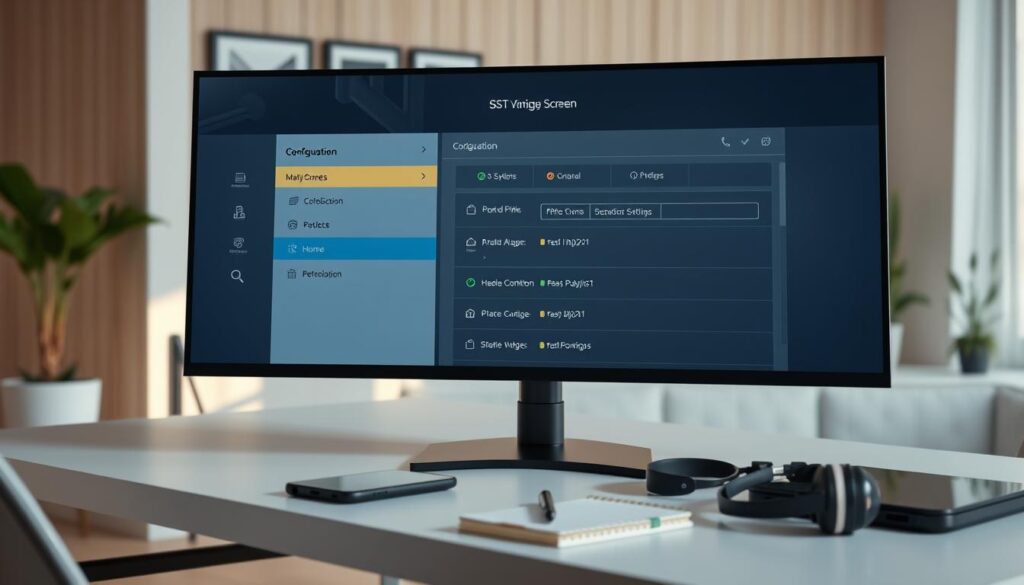
Adding content sources through playlist management is the first step in optimizing your SS IPTV performance. You can do this in two primary ways: external playlist configuration directly within the app or code-based internal playlist setup through the SS IPTV website. For external configuration, you access the Settings menu, select the Content section, provide a descriptive name for your playlist, and enter the M3U URL provided by your IPTV service. Verification involves navigating to the primary menu, locating the newly added playlist, and sampling multiple channels to ensure functionality.
Customizing Settings and Preferences
Customizing your viewing experience involves adjusting various settings within the SS IPTV application. You can change the interface language, visual theme, and display preferences to suit your needs. Optimizing performance can be achieved by configuring buffer settings, adjusting video quality based on your network capabilities, and enabling hardware acceleration where supported. Additionally, you can personalize channel organization by creating favorites lists, custom categories, and rearranging the channel order. For more information on installation and features, you can refer to this guide to SS IPTV installation and.
Securing Your IPTV SS Experience
IPTV SS users must prioritize security to safeguard their viewing experience. Using a VPN (Virtual Private Network) with your SS IPTV setup provides essential privacy protection by masking your IP address and encrypting your internet traffic.
Why You Need a VPN for IPTV Streaming
A VPN is crucial for secure IPTV streaming as it prevents your ISP and government from monitoring your online activities. Choosing the right VPN can ensure blazing fast speeds and industry-leading security features, such as those offered by ExpressVPN.
Implementing Parental Controls and Security Features
SS IPTV includes built-in parental control features that allow you to restrict access to adult content through PIN protection. You can also implement content filtering through the application’s settings menu to create a safe viewing environment.
Additional security measures include using strong passwords for your IPTV service accounts and regularly updating the application to patch security vulnerabilities. By taking these steps, you can significantly enhance your IPTV SS experience.
Conclusion
As we’ve explored throughout this guide, SS IPTV offers a flexible way to access various content on your television across different devices. You’ve learned how to set up the application on Samsung Smart TVs and Amazon Fire Stick devices, emphasizing the importance of security measures like VPN implementation. For optimal performance, ensure your internet connection meets the recommended speeds. Check out more about IPTV players on Raxxio and learn about IPTV TV Box types on Made-in-China.